


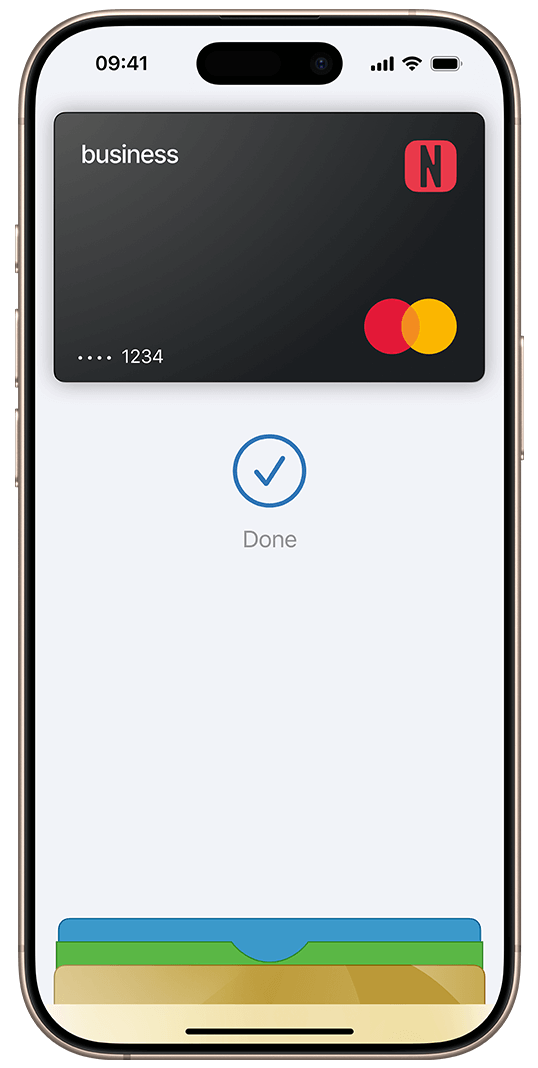
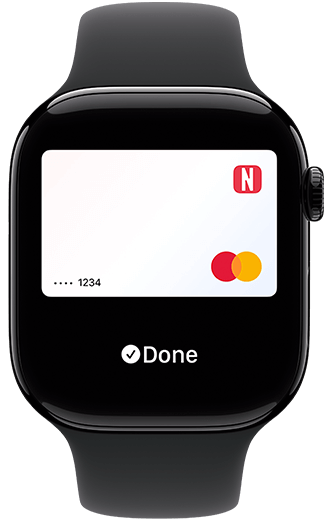

Noveba Apple Pay Noveba Apple Pay on iPhone Noveba Apple Pay on Apple Watch
QR code

Want to take a shortcut? Scan this QR code to go straight to the app.

Getting started is simple

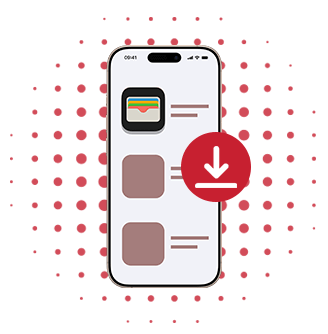
Download Apple Wallet

1. Download Apple Wallet

Go to the App Store and install the Apple Wallet app (iOS 10.0 or later is required).

Add your NOVEBA card

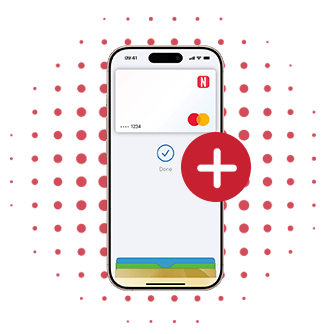
2. Add your NOVEBA card

Open the Apple Wallet app or NOVEBA app and follow the steps to add your card.

Start spending

3. Start spending

Unblock your phone and hold it near the terminal. Enjoy quick, secure payments with Apple Pay.

Go Light, Pay Smart

Ditch the bulk and pay in seconds with the device you already carry. Apple Pay lets you make quick, secure purchases without reaching for your wallet. Whether it’s your morning coffee or a last-minute errand, just tap and move on—no cards, no fuss.

Secure. Effortless. Everywhere.

With Face ID, Touch ID, and built-in encryption, Apple Pay adds an extra layer of protection to every purchase. Your card numbers are never stored on your device or shared with merchants. And your spending stays private—Apple never tracks or sells your transaction data.

No Fees, Just Simplicity

Apple Pay is free to use—no service fees, no hidden charges. Enjoy effortless payments in stores, online, and in your favorite apps, all without extra costs getting in the way.

Common questions

Apple Pay is a secure digital wallet from Apple that enables you to make contactless payments using compatible devices such as your iPhone, Apple Watch, iPad, or Mac. It can be used for in-store purchases, online transactions within supported apps, and on websites that accept Apple Pay.

Apple Pay works with:
  • iPhones
  • iPads
  • Apple Watches
  • Macs with Touch ID
Macs paired with an Apple Pay-enabled iPhone or Apple Watch. For a complete list of compatible devices, please visit Apple Support.

No, Apple does not store your card details. Instead, a unique Device Account Number is used in place of your actual card number, securely kept on your device, and it cannot be used outside of it.

The Device Account Number is a unique identifier assigned to your device for transactions. It ensures that your payments are encrypted and protected. This number is exclusive to your device and will not function outside it.

To find your Device Account Number, open the Wallet app, tap the card in question, then select the information symbol at the top right. Scroll down to view the Device Account Number.

There is no additional cost to use Apple Pay. However, you will need an active internet connection (either data or Wi-Fi) to add your card to Apple Pay. Depending on your plan, data charges may apply.

No extra app is needed to use Apple Pay—it’s integrated into your device. You will need to have the latest version of iOS or watchOS to set up cards in Apple Pay. For detailed setup instructions, please refer to Apple Support.

Adding a card to Apple Pay is different depending on the device you’re using:
  • iPhone & iPad: Open the Wallet app, tap the “+” in the top-right corner, and follow the prompts.
  • Apple Watch: Open the Apple Watch app on your iPhone, tap Wallet & Apple Pay and then “Add a new Credit or Debit Card,” following the prompts.
Mac: Go to System Preferences, tap Wallet & Apple Pay, tap “Add Card,” and follow the steps to add a new card.

For security purposes, when a new card is added to Apple Pay, you’ll be asked to complete a verification check. This may involve a one-time password sent to your registered mobile phone number or email address, or you may be asked to answer security questions over a phone call.

Yes, a single card can be added to Apple Pay on multiple devices. However, you will need to add the card to each device individually.

The first card you add becomes the default. To change your default card:
  • iPhone & Apple Watch: Open the Wallet app or the Watch app, go to the My Watch tab, tap Wallet & Apple Pay, then “Default Card,” and select a new card.
iPad & Mac: Go to Settings or System Preferences, select Wallet & Apple Pay, and choose your new default card from the drop-down menu.

If your device is lost or stolen, use the Find My iPhone app to remotely lock the device and disable Apple Pay, or log into iCloud.com to remove all cards from Apple Pay. If you don’t have access to the app, immediately close or freeze your Noveba card using the Noveba online banking platform or the Noveba app. Alternatively, you can contact Noveba support for further assistance.

For additional support, please visit Apple Support.
NOVEBA Card

Always at your service!

Contact us