

Your Noveba card.
Your Google Pay™ wallet.

Enjoy a faster and more convenient way to pay.

Getting started is simple

Download Google Wallet

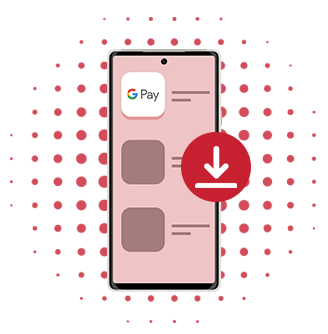
1. Download Google Wallet

Head to the Google Play Store and get the Google Wallet app (Android Lollipop 5.0 or later is required).

Add your NOVEBA card

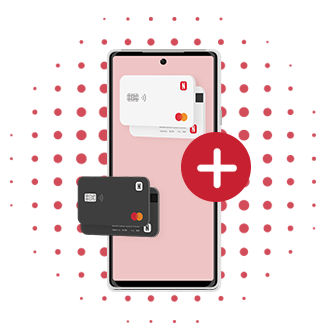
2. Add your NOVEBA card

Open the Noveba App or Google Wallet and follow the instructions to add your card.

Start spending

3. Start spending

Your, Done! Unblock your phone and hold it near the terminal. And enjoy contactless payments.

Leave Your Wallet Behind – On Purpose

With Google Pay, your Noveba card is securely stored in your virtual wallet, so your physical wallet can stay at home. Whether you’re commuting, shopping, or grabbing a coffee, Google Pay works anywhere contactless payments are accepted. Just open the Noveba App, add your card to Google Wallet in a few clicks, and you’re ready to go.

Secure. Everywhere You Go.

With advanced biometric authentication (fingerprint and face ID), robust fraud protection, and encrypted transactions, Google Pay offers security beyond traditional card swipes or cash payments. Plus, your transaction data remains private and is never used for other purposes by Google.

No Fees, Just Convenience

Google Pay is entirely free to use. There are no service charges or transaction cuts—just seamless payments online, in-app, and in-store without hidden costs.

Common questions

Google Pay is compatible with Android devices running version 5.0 (Lollipop) or higher, as long as they support NFC (Near Field Communication) and HCE (Host Card Emulation) technology. Smartwatches with Wear OS can also use Google Pay if they support NFC.

Yes, all Noveba cards, including physical, virtual, personal and business cards, are compatible with Google Pay.

Google Wallet is a digital wallet app from Google that securely stores your payment cards, loyalty cards, tickets, and other essential items you would typically keep in a physical wallet. It is integrated with Google Pay, allowing you to make quick and secure payments in stores, online, or in apps.

You need Google Wallet to use Google Pay because it acts as the platform where your card details and payment information are securely stored and managed. This integration ensures a smooth and secure payment experience whenever you use Google Pay.

1. Download and open the Google Pay app. 2. Select “Add a card”. 3. Enter your card details, read and accept the terms, and verify your card. Your Noveba card will then be ready for use.

Google Pay is highly secure, using advanced security measures like tokenization, biometric authentication, and transaction encryption to protect your information. Your full card details are never shared with merchants. Additionally, you are further protected by Android security features, which include device encryption, app security, and Find My Device capabilities to safeguard your data and transactions.

First of all, you should immediately close or freeze your Noveba card using the Noveba online banking platform or the Noveba app. Alternatively, you can contact Noveba support for assistance. Additionally, you may use the Find My Device feature to lock or erase your data. You can also remove your Noveba card from Google Pay remotely to ensure your financial information stays safe.

You can use Google Pay at any retailer that accepts contactless payments, as well as for online and in-app purchases wherever you see the Google Pay button.

The settings and payment limits of your physical or virtual card also apply to your digital card in Google Pay, except that there is no contactless payment limit for digital transactions. Note that physical contactless payment limits have been raised in many European countries, typically ranging from EUR 40 to EUR 60, depending on the country.

No, there are no additional fees for using your Noveba card with Google Pay. However, standard fees and charges associated with your card may still apply.

Your Google Pay transaction could be declined for several reasons, such as insufficient funds, exceeding transaction limits, or security concerns. Double-check your account status or try using a different payment method.

To remove your Noveba card, open the Google Pay app, select the card you want to remove, and choose “Remove payment method” from the options menu.

Yes, you can set a default card by selecting the card you want to use as default in the Google Pay app and tapping “Set as default.”
NOVEBA Card

Always at your service!

Contact us